
Ah, the humble computer. It’s certainly come a long way since the days of the first machines that comprise of vacuum tubes! We can do all kinds of everyday tasks with these that the vacuum tubes can’t do. Like playing video games, streaming videos and movies, access online services and connect with people across the world.
But gradually, all the additional performance gains over the years come at the cost of scope for upgrades. Various laptops especially, lost the option to upgrade the CPU, RAM and sometimes internal storage, without having to replace the whole motherboard, or even buy a whole new laptop or tablet. Unless you have a Framework laptop, of course!
However, we can still find ways to maximise the lifespan of the desktop PCs, laptops and, to an extent, tablets with Windows. So today, we cover a few ways to eke out every last working day of our computers.
Installing a GNU/Linux distro
You may have noticed tech news about Microsoft arbitrarily restricting computers eligible for upgrading to, or installing Windows 11 on, to those that meet certain specifications. Modern CPUs, a TPM 2.0 chip, among other things. And so, we might end up needlessly throwing away otherwise perfectly working computers because Microsoft decided they are too old for their latest shiny Windows operating system. But what if you can extend its service life by installing a GNU/Linux distro instead?
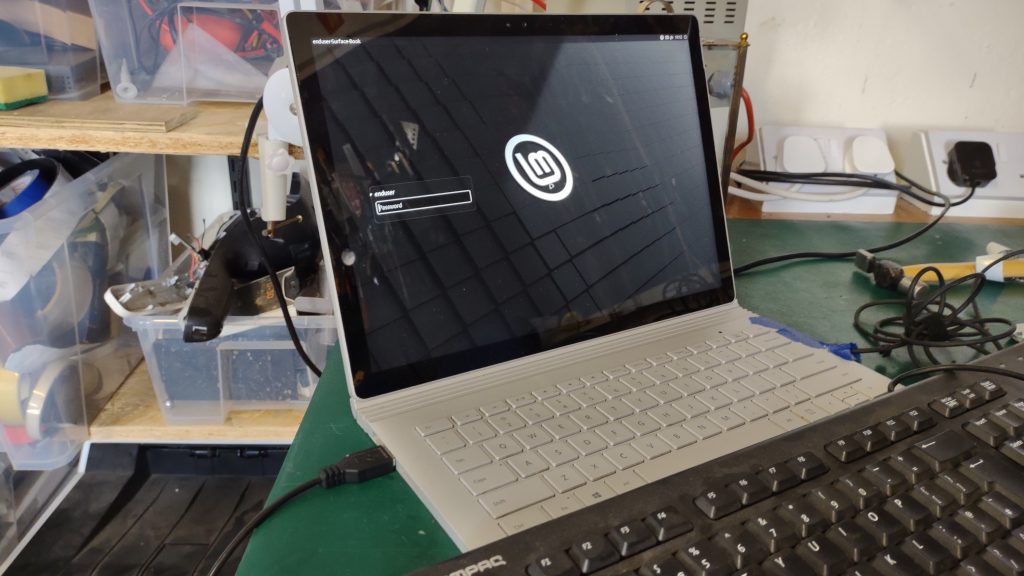
To give you an example, here is a Microsoft Surface Book, which we recently had in our workshops. We tried multiple times to upgrade the operating system on the computer to Windows 11, but it would abruptly shut itself down every time. So, I then tried installing Linux Mint (our recommended choice for people looking to migrate to GNU/Linux) from a USB stick I had at hand – and it installed and booted just fine! I did have to adjust the scaling settings, because at its native resolution everything looked super tiny on-screen!
And the beauty of GNU/Linux is that there’s a distro out there for virtually any computer. Whether it’s Fedora for most modern computers, Linux Mint with XFCE for older computers, or even Tiny Core Linux for vintage computers! In fact, several distros even run on Apple Macs with Intel CPUs!
Max out the RAM
Ongoing “RAMageddon” aside, adding more RAM to your computer can help improve responsiveness and allow for performing more intensive tasks. If, of course, it has the free slots or capacity to spare!
It’s a good idea to check the specs of your laptop, prebuilt desktop PC, or motherboard if you built your own desktop PC. This helps you check the maximum amount of RAM it can take, as well as whether you can actually upgrade the RAM in the first place. Otherwise, you’ll find you wasted a whole computer’s worth of hard-earned cash on a kit of RAM, only to find that your computer has only soldered-in RAM!
Upgrade the storage
Most modern computers feature solid-state drives (or SSDs for short), which have several advantages over hard disk drives. They have superior read and write performance.
However, many older computers still came with hard drives installed, which can make them feel sluggish. Therefore, they benefit from an upgrade to an SSD, whether it’s an NVMe drive, or even a SATA SSD.
Many desktop PCs usually have spare room for additional internal storage devices. This allows for a setup, where the fastest SSD (usually an NVMe SSD) contains the operating system, and the slower SSD or hard drive contains the user data, such as documents, music, videos and photos.
But if you can’t upgrade storage on your laptop or tablet because it has soldered-in storage, you can still expand the amount of storage it can access using an external hard drive or SSD, or a large capacity USB flash drive.
Wrapping up
Before spending hundreds in cash on a new desktop PC or laptop, it’s worth looking at your current computer to find ways to eke out another few years of life out of it. RAM and/or storage upgrades, and a lighter GNU/Linux operating system are some of the main ways you can upgrade your existing computer.